
At Infinity Nation, Shopify sites make up 90% of the websites we audit. Over half of the Shopify audits, we conduct flag the issue of Product in Collection URLs causing content duplication and the overreliance on canonical tags.
So, to help you undertake this quick win, our SEO team thought a quick video (coming soon) and supporting blog would help.
If you think your Shopify site could use an SEO audit, please contact us, and we can schedule a discovery call.
Jump to section
- Why is this an issue
- Are these URLs causing issues
- Locating URLs on your website
- Fixing the issue within Shopify
Shopify Product URL Structures
The structure of Shopify product URLs can be confusing because it can create duplication, which makes it seem inconsistent and unfriendly to both users and search engines.
Products are created within the /products/ directory.
Example: /products/wifi-bird-box-camera
But by default, when you create a collection and add products to it, you also generate a canonicalised product collection URL, which has the following structure.
/collection/collection-title/products/product-title
Example: /collections/bird-box-cameras/products/wifi-bird-box-camera
Fixing this issue is straightforward with access to your liquid theme files.
We have audited some sites where there have been 10 or more URLs for one product due to the number of collections it sat in.
But they canonicalise, so what is the harm?
Why is this an issue?
As mentioned above, this is a default setting by Shopify – and yes, they do handle it “correctly” with HMTL Canonical Tags.

As you can see above the page URL is /collections/bird-box-cameras/products/wifi-bird-box-camera
But the canonical is – /products/wifi-bird-box-camera
This creates an over-reliance on canonical tags rather than fixing the root cause.
The issue is that canonical tags are not directives – they are simply suggestions to search engines, and they can be/are ignored.
This can result in duplicate content errors and, in some cases, the wrong/non-indexable version of the product being indexed by Google.
Furthermore, this handling of URLs creates a bloated site structure, meaning search bots must spend more time crawling the site.
For example, 500 product URLs will result in a minimum of 1000 URLs if each product only sits in one collection; as you can imagine, this can quickly escalate.
Additionally, you will send incorrect link signals within your site architecture through internal links referencing the non-indexable content over the canonical URL.
Are these URLs causing indexation issues?
There are several ways to spot if these URLs are causing problems.
First, check your Google Search Console account – under indexing > pages.
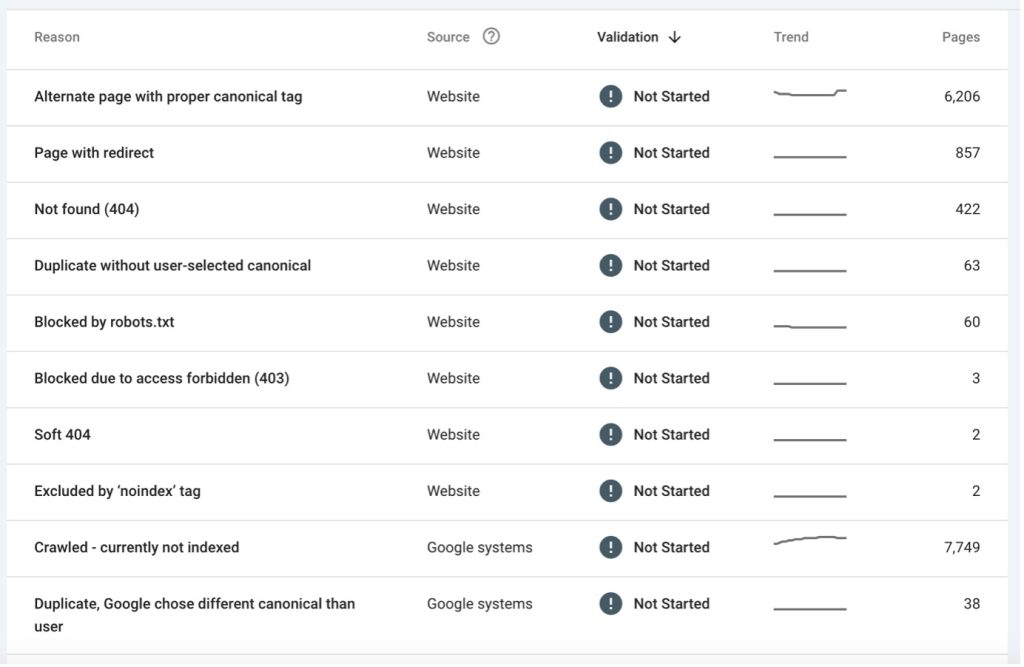
You will see a list of reasons why pages aren’t indexed.
When product in-collection URLs are present, we typically see them logged with the following errors:
- Alternate page with proper canonical tag
- Duplicate, Google chose a different canonical than the user – if they chose to ignore the canonical tag
- Crawled, currently not indexed
If you identify a pattern of these URLs being flagged, you need to address it, although our recommendation is to address it regardless.
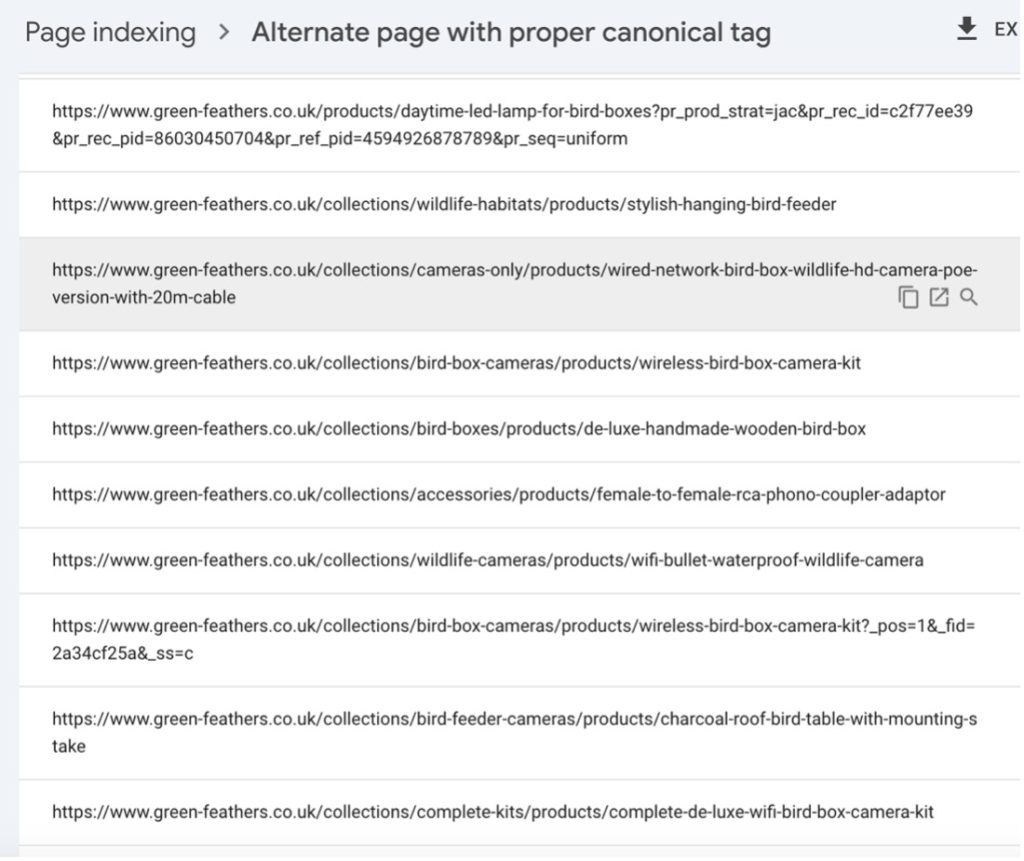
Locating these URLs on your website
We’ve explained why we don’t want these URLs; now, let’s review the site and find them.
Typically, we find products in collection URLs on product cards.
So,
- collection pages
- recommended products in the dedicated product template
- Home page – bestsellers, new in etc….
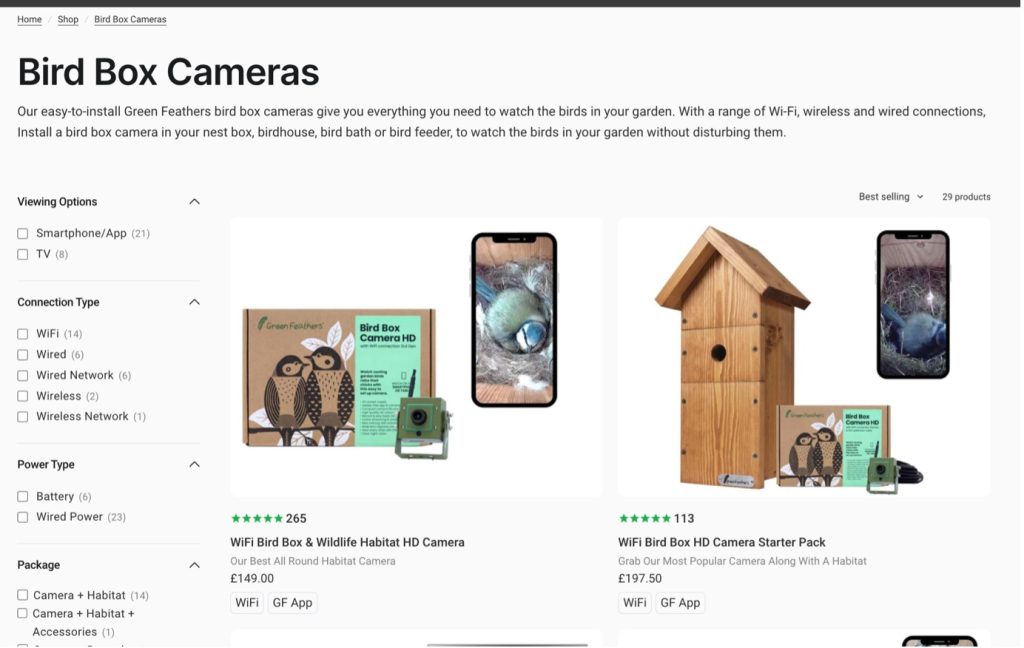
Example of a collection page with non-indexable URLs
But we have also found them in
- Navigations – Yes, even in the navigation where clients have linked directly to a hero product but not used the correct link
- Internal links in blogs/supporting content.
The last two are easy to address by updating the URLs in the content.
Auditing your collections/product cards is straightforward.
Visit a collection and click the linked elements – Images, Product title and Call to action, and review the rendered URL. If it contains /collections/, you need to update your liquid theme file.
Once located, right click the linked element and select inspect – this step will help when it comes to fixing the issue.
Review the div class for the element, and jot it down. Sometime the class will give a clue to the liquid file you will need to edit.
While auditing the locations, also make a note of your product breadcrumb structures.
Both URL formats have a breadcrumb structure which reflects the URL, so as you can imagine, collection URLs tend to have more optimised breadcrumbs than the canonical, which usually just references Home.

Example of collection URL breadcrumb

Example of canonical product URL breadcrumb
However, sometimes we see examples where the canonical breadcrumbs have been optimised. This is worth noting as there might be additional steps you or your developer will need to undertake.
Fixing the issue
Fixing the core issue to update the URLs used on the product cards is fairly straightforward. Some coding is involved, but you won’t be adding anything; you will only be removing code.
NOTE: Before making any changes, ensure there is a recent backup of the site. If there isn’t, please make one and keep a log of any changes to the code in case issues arise that need to be troubleshooted.
Login to your Shopify store account and access your theme
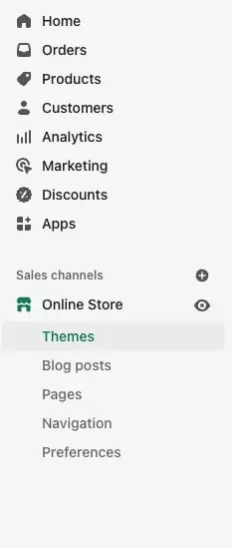
Open the theme code
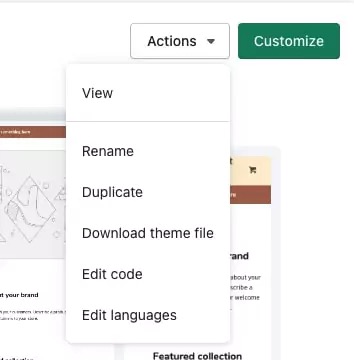
Now, you will need to locate the liquid file to edit. Hopefully, you could jot down the div class – try searching for that first.
Alternatively, under layout > snippets, look for a file which is called
- Product-grid-item.liquid
- collection.liquid
- Product-card.liquid
If you are unable to locate a file which matches the above, you will need to review each snippet and locate the following line of code – again, it might be one of the following formats:
Featured.url | within: collection
product.url | within: collection
product_url | within: collection
Once you find this line of code, remove the “| within: collection” element so the code looks like this
{{ product.url | within: collection }} to{{ product.url }}
and click save.
Visit the locations where you found the URLs to make sure they have been updated.
Ideally, you should implement 301 redirects in your Shopify store from the collection URLs to the product URLs so you’re not fully diluting your authority, as even orphan pages get crawled by Google sometimes.
As Google will most likely know the URLs, this step is optional, but we recommend you monitor your Google Search Console for performance and page indexation changes.
Why should we update our Shopify Product URLs?
This update will ensure your site structure is clean and easy to crawl, which will aid search engines in providing the most relevant content to users. It also improves internal links to the canonical/correct product URL, which we have seen help increase rankings and visibility, thus driving more website traffic and conversions.
Your Shopify SEO Experts
Here at Infinity Nation, our Shopify Experts are at hand to help. If you need support to identify, roll out, or brief developers, get in touch. We have rolled this change out for many clients and seen great results. Contact the team today to discuss your Shopify requirements.


DO YOU WANT TO PUSH YOUR DIGITAL GROWTH STRATEGY FORWARD? LET’S CHAT.
Interested in working with INFINITY NATION to create a successful digital experience for your company or product?
Get in touch to set up a meeting with our team.

